On some Android smartphones, especially budget Samsung Galaxy models, the built-in screen recording feature may be missing. As a result, there is simply no “Screen Record” button in the Quick Settings panel.
If you search for a solution online, you will usually be advised to install a separate screen recording app. This method can certainly work, but free apps often contain advertisements, while some features are only available after paying.
In this article, I will show you another method. You do not need to install a regular screen recording app and deal with advertisements. Instead, we will install the necessary function and then add the “Screen Record” button directly to the Quick Settings panel.
This method works with Android smartphones and is especially useful for Samsung models that do not have a built-in screen recording feature.
Why Is the “Screen Record” Button Missing?
If you open the Quick Settings panel on some smartphones, there is simply no screen recording button.
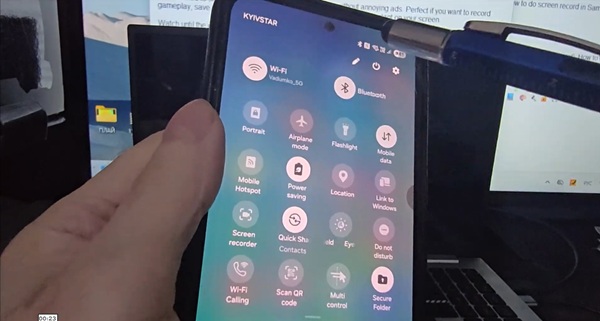
This does not mean that there is anything wrong with your phone. On some models, the manufacturer simply did not include a built-in screen recording tool.
Usually, users in this situation are advised to download a third-party Screen Recorder from Google Play. But if you do not want to use an app with advertisements or pay for additional features, there is another option.
How to Add the Screen Recording Function
First, you need to download the function that adds screen recording capability.
I will provide the download link at the bottom of this page. Download the file and install it on your smartphone.
After installation, the screen recording function will be available on the phone. However, the Screen Record button may not appear in the Quick Settings panel automatically. The next step is therefore to add it manually.
How to Add the Screen Record Button to Quick Settings
Swipe down from the top of the screen to open the Quick Settings panel.
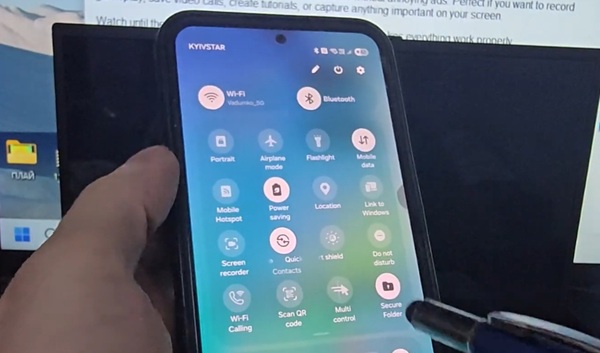
Then open the additional panel settings. Depending on your Android version and smartphone manufacturer, this may look slightly different. Find the option for changing or editing the Quick Settings buttons.
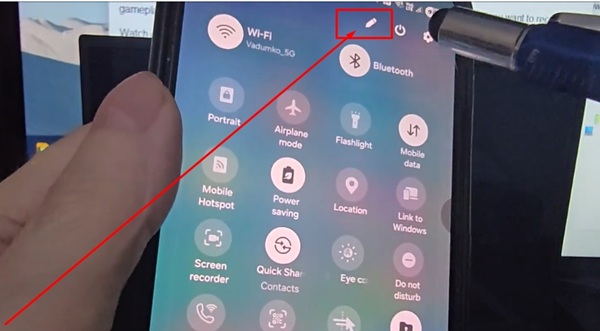
Next, find “Screen Record” among the available buttons.
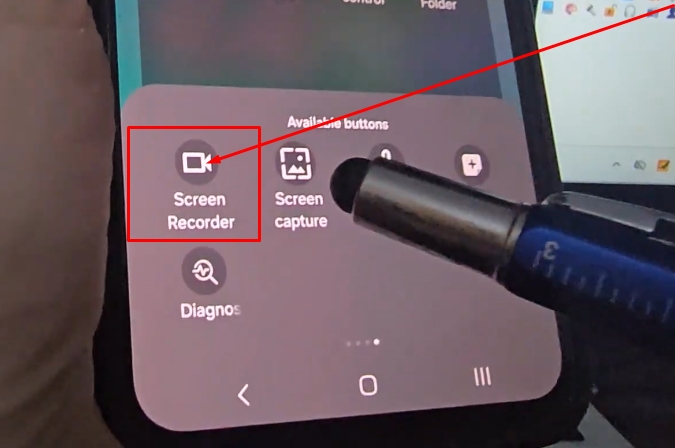
Press and hold the button and drag it to a convenient location among your other Quick Settings buttons. Now the “Screen Record” button is available directly in the Quick Settings panel, so you do not need to search for a separate app every time you want to record your screen.
How to Use Screen Recording
Once the button has been added, simply open the Quick Settings panel and tap “Screen Record.”
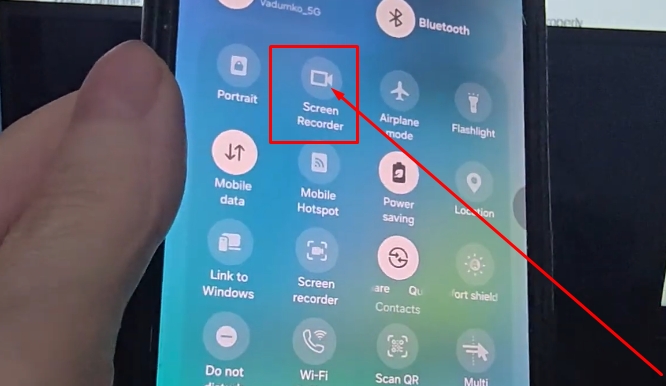
The phone will start recording, and everything happening on the screen will be captured.
When you are finished recording, you can stop the recording using the corresponding notification or the recording controls.
The finished video will be saved on your phone like a regular screen recording.
Why Is This Method Better Than a Regular App?
The main advantage of this method is that you do not need to constantly use a separate Screen Recorder app with advertisements.
After installing the function, you only need to add the button to Quick Settings once. From then on, you can start screen recording directly from the Quick Settings panel.
This is especially convenient on budget Samsung Galaxy smartphones where the manufacturer did not include a built-in screen recording feature.
At the same time, this method is not limited to Samsung. You can also try it on other Android smartphones if they do not have a standard screen recording function.
Conclusion
If the “Screen Record” button is missing from your Android smartphone, you do not necessarily need to install another screen recorder filled with advertisements.
You can download the necessary function, install it on your phone, then open the Quick Settings panel and add Screen Record to a convenient location.
As a result, the screen recording button will always be available, and you will not need to open a separate app every time you want to start recording.
Official website:
no
OS:
Android
Interface:
English

Screen recorder