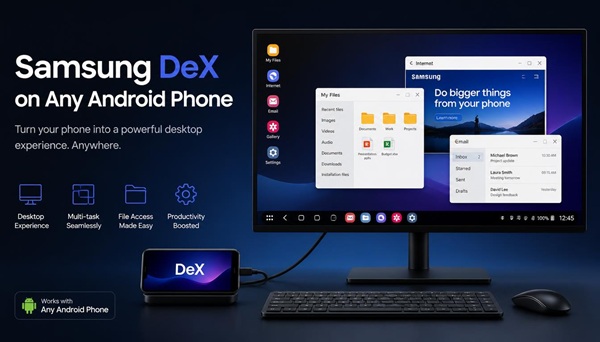
Samsung DeX is a useful feature that transforms a compatible Samsung Galaxy device into a desktop-like environment. But what if your smartphone doesn’t support Samsung DeX? If you own a budget device, such as the Samsung Galaxy A08, A18, or another Android phone without this feature, you might think that there’s no way to get a similar experience.
Fortunately, there is an alternative worth exploring: Flex. By installing the Flex application on your Android phone and its corresponding program on your Windows computer, you can try a different approach to getting a desktop-style mobile experience.
In this guide, you’ll learn how to install Flex on both devices and get started without installing Samsung DeX itself.
Can You Install Samsung DeX on Any Android Phone?
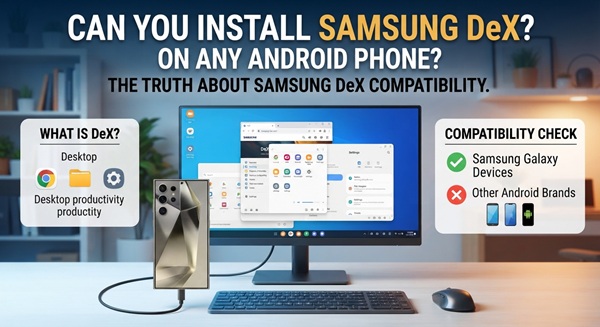
Samsung DeX is Samsung’s proprietary desktop platform. It isn’t a universal Android application that you can install on every smartphone. Its availability depends on the device model and software support.
However, if your phone doesn’t include Samsung DeX, you can consider Flex as an alternative. Instead of trying to install an unsupported version of DeX, you’ll use the Flex application on your smartphone and the corresponding Windows program on your computer.
This approach may be particularly interesting for owners of budget Samsung Galaxy smartphones that don’t offer native DeX support.
What You Need to Get Started
Before you begin, make sure you have an Android phone with access to the Google Play Store, a Windows computer with access to the Microsoft Store, and an internet connection for downloading the required applications.
You’ll need to install Flex on both devices. Make sure that the applications you download are the intended versions and that your phone and computer meet their compatibility requirements.
Install Flex on Your Android Phone
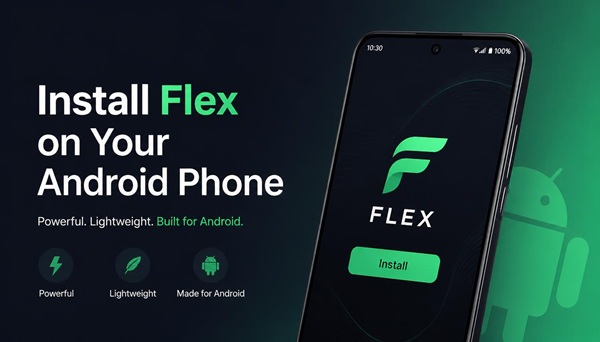
Open the Google Play Store on your smartphone and search for the Flex application. Check the app listing carefully to ensure that you’ve selected the correct application.
Tap Install and wait for the download to finish. Once the installation is complete, open Flex and review any initial setup instructions or permission requests.
The available options may vary depending on your Android version and the application version. Grant only the permissions necessary for the features you want to use.
After completing the initial setup, leave Flex ready on your phone while you prepare your computer.
Install Flex on Your Windows Computer
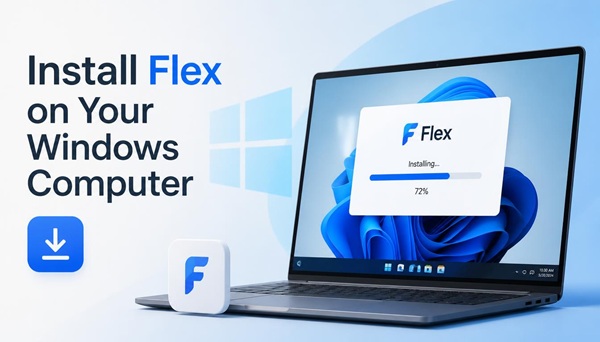
Now open the Microsoft Store on your Windows PC and search for Flex. Locate the corresponding desktop application and verify its details before installing it.
Click Get or Install, depending on the options displayed in the store. Wait until the installation finishes, then launch Flex on your computer.
You should now have the application installed on both your Android phone and your Windows PC. This is the essential part of the setup: you need the phone application as well as the computer program.
Connect Your Phone to Your Computer
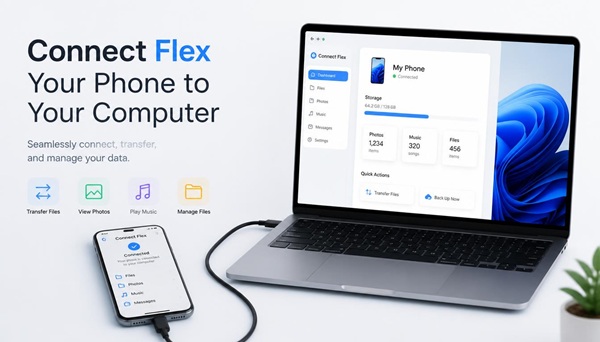
Open Flex on both devices and follow the connection or pairing instructions provided by the applications.
The exact connection method depends on the version of Flex and the devices you’re using, so follow the instructions displayed on your screen rather than assuming that every setup works the same way.
If the connection doesn’t work immediately, check that both applications are updated and that your devices meet the software’s requirements. Also, make sure that any required permissions or connection settings have been configured correctly.
Once the connection is established, explore the interface and see which desktop-style features are available on your particular setup.
What to Do If Flex Doesn’t Work
If Flex fails to connect or doesn’t behave as expected, check whether the applications on both devices are up to date. Review the software’s compatibility requirements and follow the connection instructions again.
You can also close and reopen both applications, check the required permissions, and verify that your Windows computer and Android phone support the connection method specified by Flex.
If the problem persists, consult the application’s official support resources for instructions specific to your device.
Final Thoughts
If your Android smartphone doesn’t support Samsung DeX, you don’t necessarily have to abandon the idea of using your phone in a desktop-style environment.
The process is straightforward: install Flex from the Google Play Store on your Android phone, install the corresponding Flex program from the Microsoft Store on your Windows computer, and follow the application’s connection instructions.
Flex is an alternative, not the official Samsung DeX platform, and it may not offer all the same features. Nevertheless, if you own a Samsung Galaxy A08, A18, or another smartphone without native DeX support, checking Flex’s compatibility could be a useful next step.
Have you tried Flex on your Android phone? Share your smartphone model and experience in the comments to help other users discover which devices work with this solution.
